Documentation Index
Fetch the complete documentation index at: https://domoinc-arun-raj-connectors-domo-480814-upadate-new-checkbo.mintlify.app/llms.txt
Use this file to discover all available pages before exploring further.
Intro
You can customize your personal, team, and company goals. By using enhancements, you can create associations between your goals and other goals in your organization. This article describes how to add tags, comments, attachments, and link parent and child goals.Adding a Tag
Tagging establishes a searchable way to see all goals and metrics with the same tag, regardless of who they belong to. Both goals and metrics can have tags, but they function independently of one another.Tagging a Goal
- In the navigation header, select Goals.
- In the left-side rail, locate your goal in the Personal, Team, or Company tabs.
- Select a goal.
- In the Details tab, select + Tag.
- Select a tag from the available list, or create a new tag by entering a title in the search field.
- To delete a tag, select the
Delete
 next to the tag.
Tagging a Metric
- In the navigation header, select Goals.
- In the left-side rail, locate your goal containing the metric in the Personal, Team, or Company tabs.
- Select a goal containing the metric you want to tag.
- Select the metric you want to tag.
- In the metric details, select + Tag.
- Select a tag from the available list, or create a new tag by entering a title in the search field.
- To delete a tag, select the
Delete next to the tag.
Adding Comments and Attachments
As you track your progress, add comments or attachments to goals and metrics. You can document updates over time by going to the Comments tab in the goal or metric details view.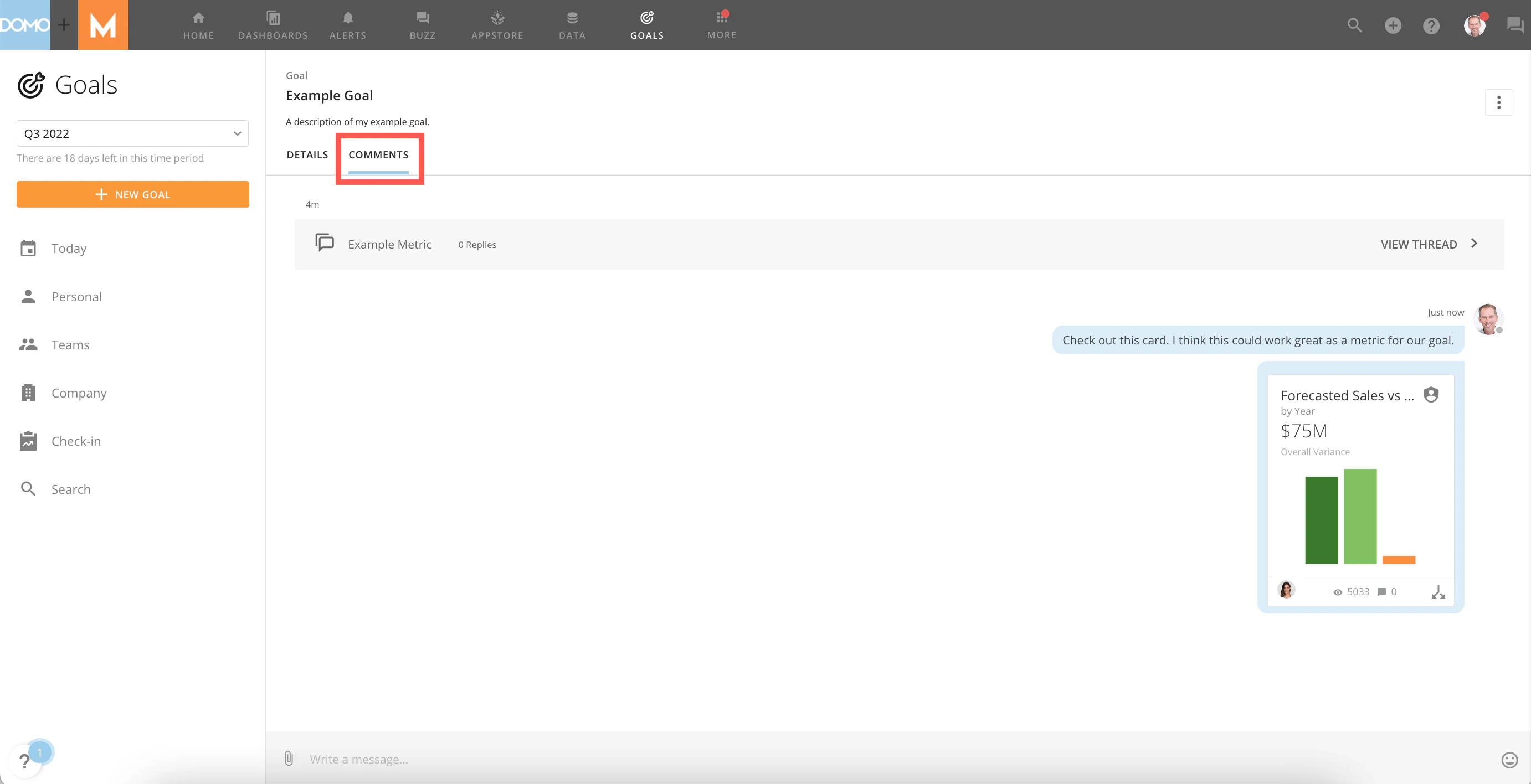
 in the message field.
Linking Parent and Child Goals
Let’s say your goal relates to a higher-level goal in your company. In this case, you can link goals together, making your goal a Child to the higher-level or Parent goal. The benefit of having parent and child goals is to create a connection between goals that you can visualize in Tree View or Lineage View. You can also expand parent goals to view child goals, and click on specific goals to see summaries.- In the navigation header, select Goals.
- In the left-side rail, locate your goal containing the metric in the Personal, Team, or Company tabs.
-
From the goal details page, select
+ Parent Goal or + Link Child Goal.
- If you chose + Parent Goal in the previous step, search for and click on the desired parent goal, then click Select. Your goal is now connected to the selected objective as a child.
- If you chose + Link Child Goal, you can search for an existing goal or create a new one. The options for creating a new goal are the same as those described in Getting Started With Goals and will become a child goal automatically.
Tree View
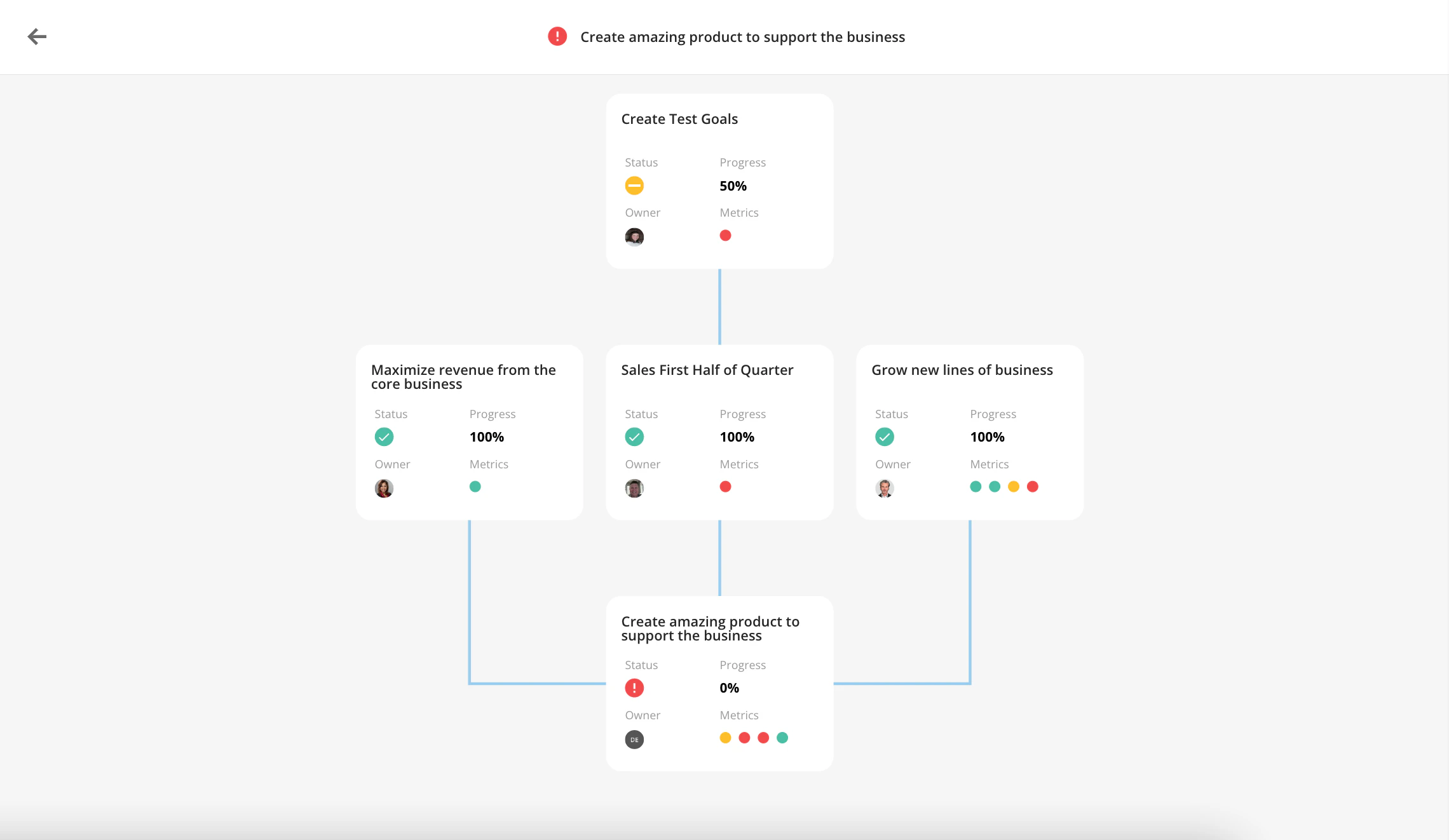
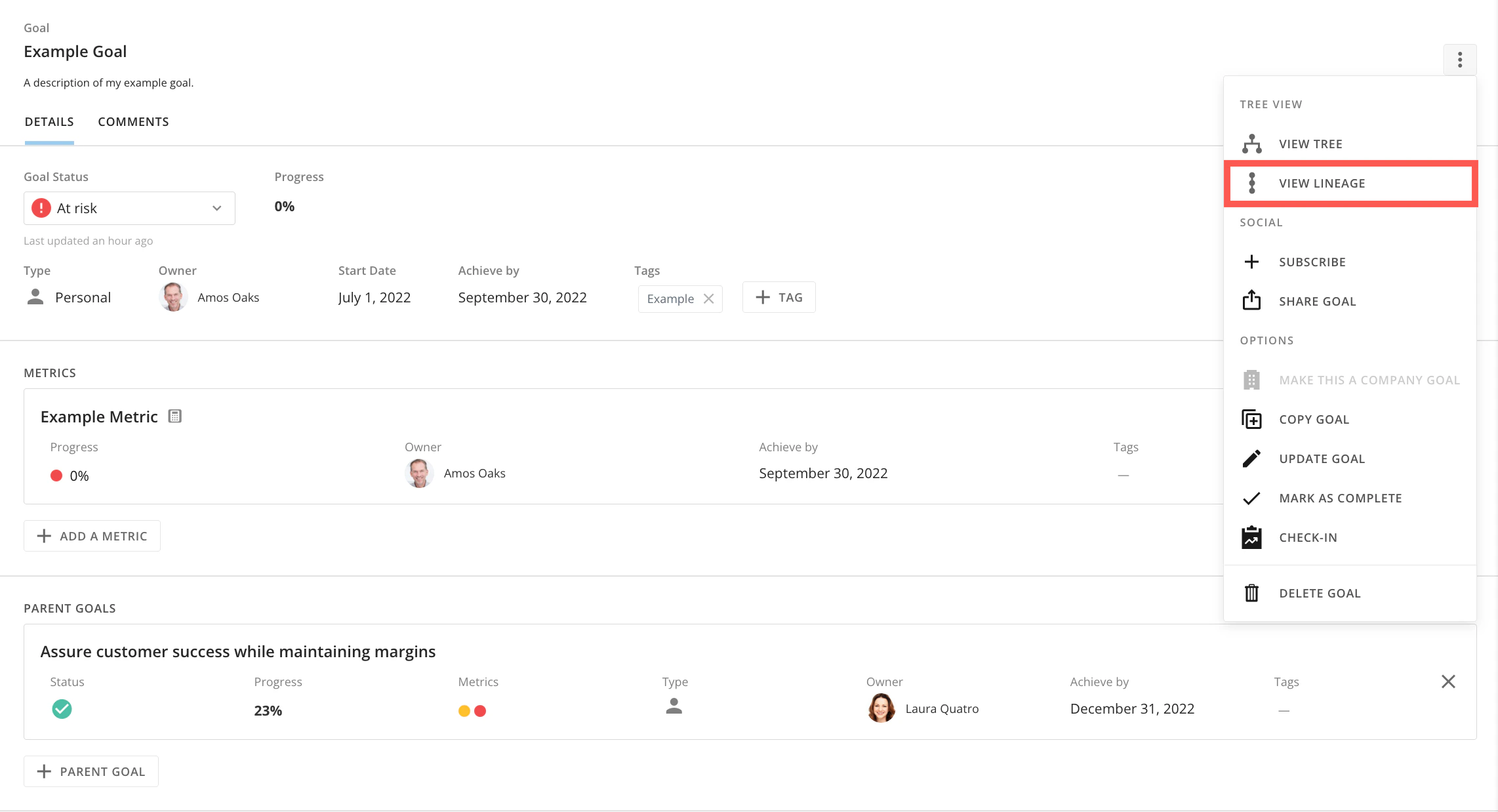
Tree view displays an entire hierarchy of a goal with its child goals. Select View Tree in the Goal Options menu.
menu.
 from the Personal, Teams, or Company tabs.
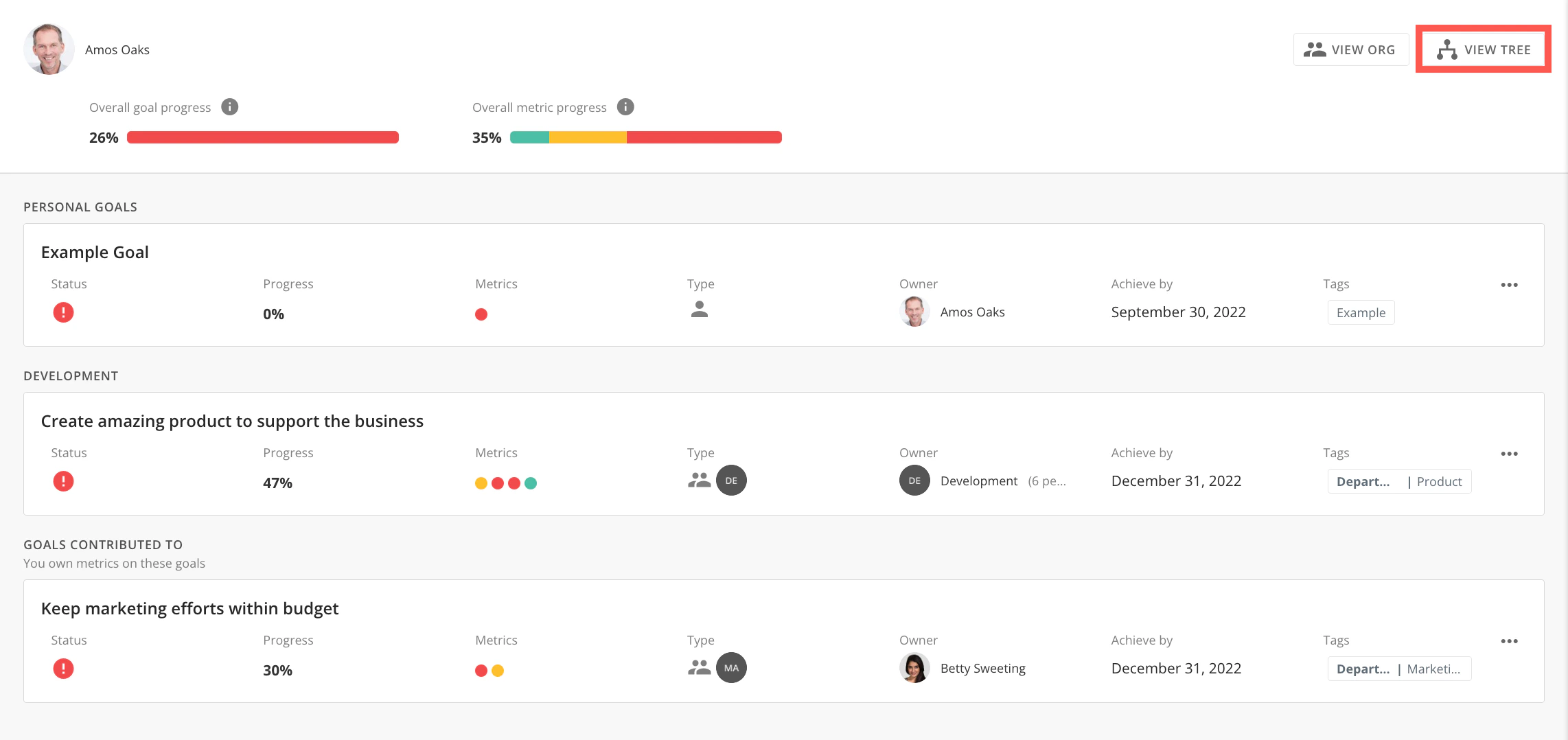
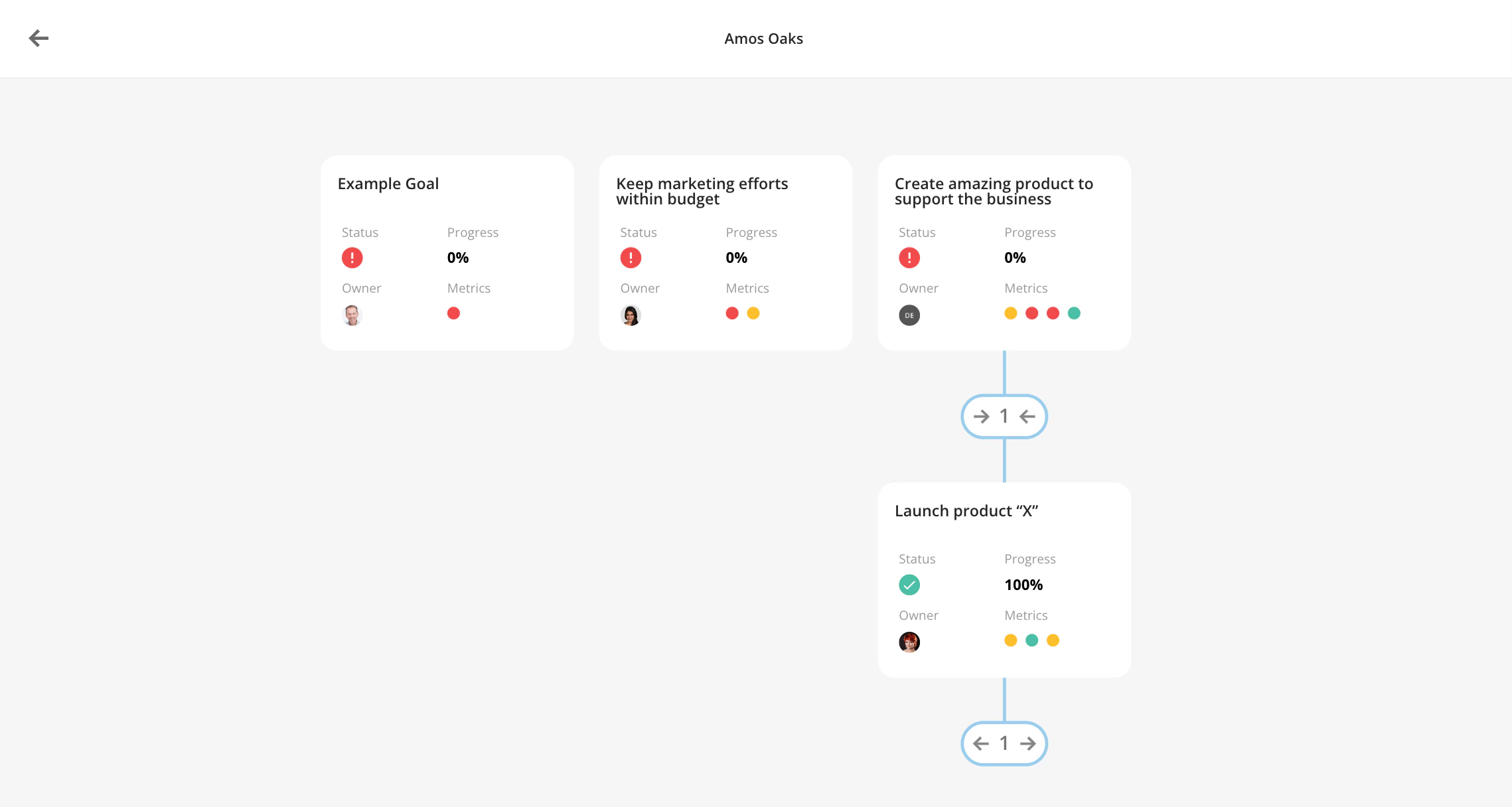
Lineage View
You can see the lineage of your goal using the lineage view. This view is similar to tree view. It shows all parents of your goal up to the highest-level goal but does not show children. Select View Lineage in the Goal Options menu in the Goal Details page.