Documentation Index
Fetch the complete documentation index at: https://domoinc-arun-raj-connectors-domo-480814-upadate-new-checkbo.mintlify.app/llms.txt
Use this file to discover all available pages before exploring further.
Intro
Welcome to Domo! Let’s explore the key features and tools you’ll use in your Domo instance. This guide will help you find and utilize the essential elements of Domo effectively.Dashboards
You can access your dashboards in the left navigation by selecting Features > Dashboards.Manage Dashboards
From the Dashboards side panel, select Manage Dashboards to create new dashboards or customize the order of existing dashboards. Remember, your arrangement doesn’t affect other users.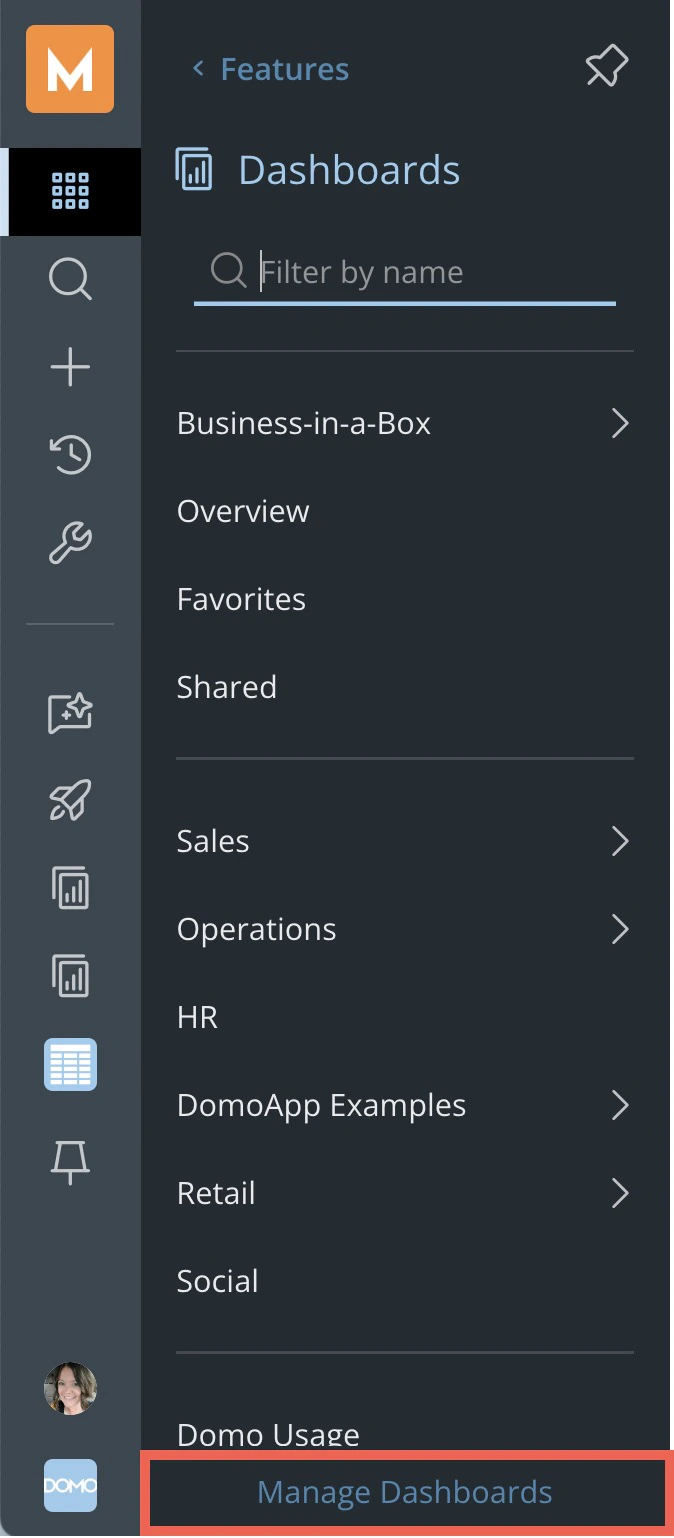
Create a Sub-Dashboard
Sub-dashboards add a layer of organization to the dashboard view. To create a sub-dashboard from the Manage Dashboards modal, select the arrow next to a top-level dashboard and select Add a sub-Dashboard.
Appstore
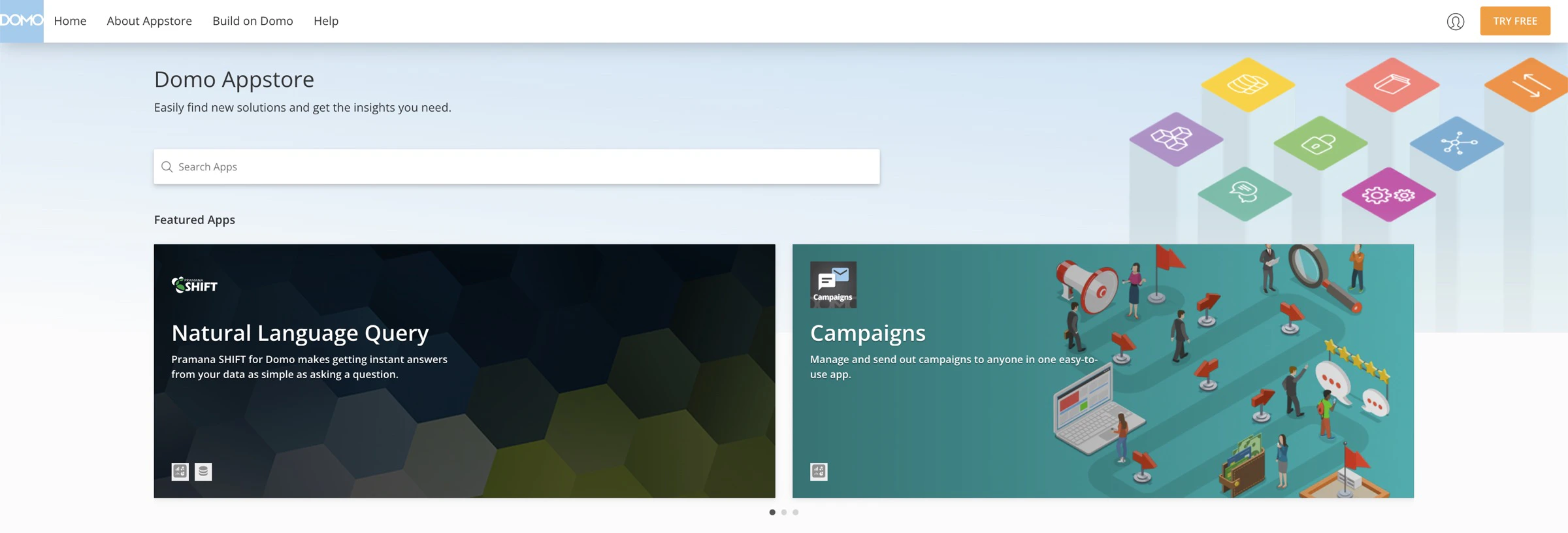
Visit the Domo Appstore to find premade dashboards and apps where you can plug in your data and go. You can also access our collection of hundreds of connectors to bring your data into Domo.
Data
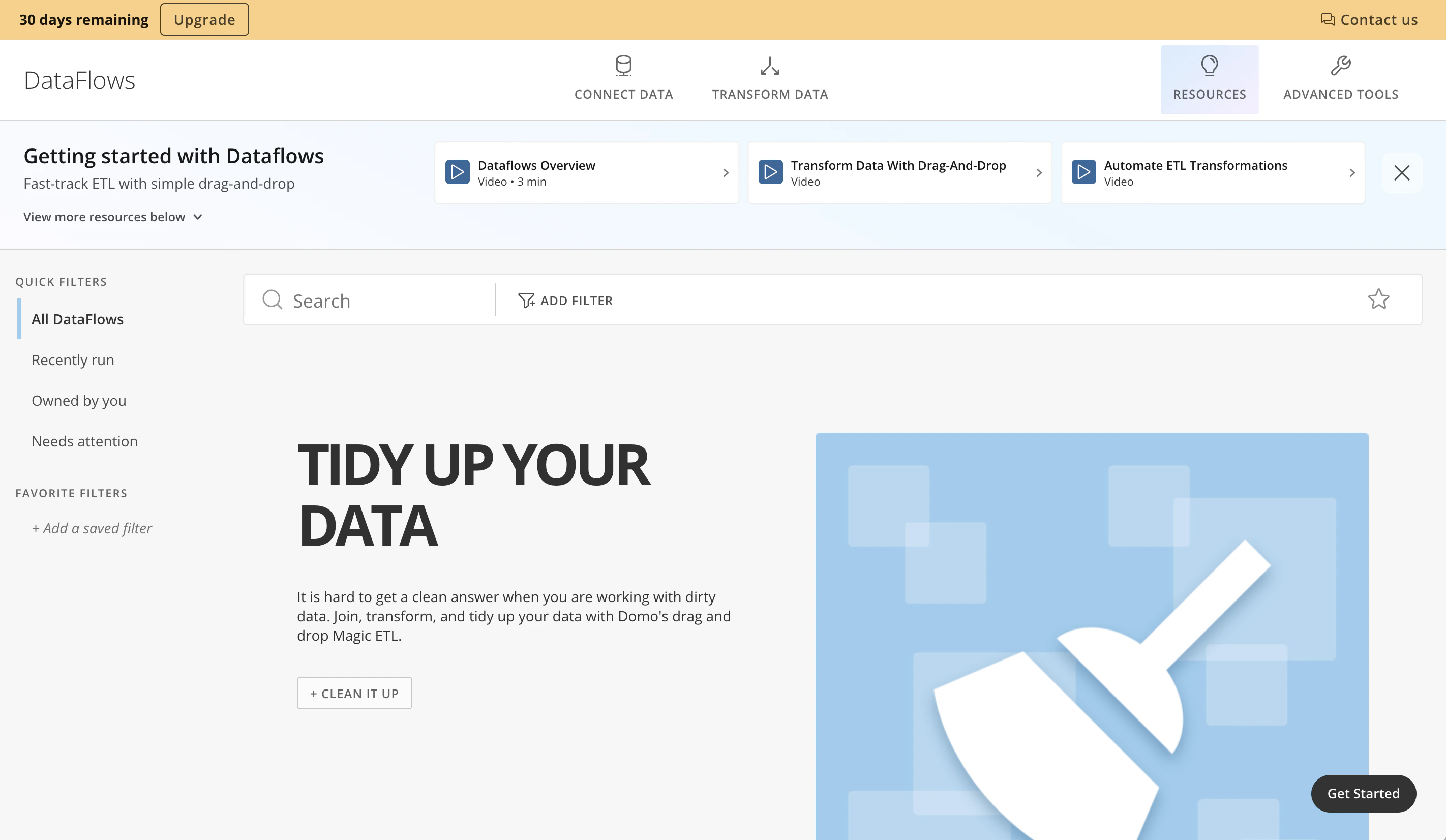
After you bring your data into Domo, you can access it in the DataSets feature. From the left navigation, select Features > DataSets.
Alerts
You can configure Alerts to notify you about significant changes, like a 20 percent drop in sales. They can be sent via email, text, or via the Domo app.\ Learn more about Alerts.
User Profile
Choose your avatar at the bottom of the left navigation and select Profile to open your user profile.
Admin Settings
Going to Admin in the left navigation displays the admin settings.
Help Resources
There are many options to get help with Domo.Support
Follow these steps to contact our support team:-
Choose your
 avatar in the left navigation and select Help Center.

- In the Help Center, select Support in the top right corner.
Community Forums
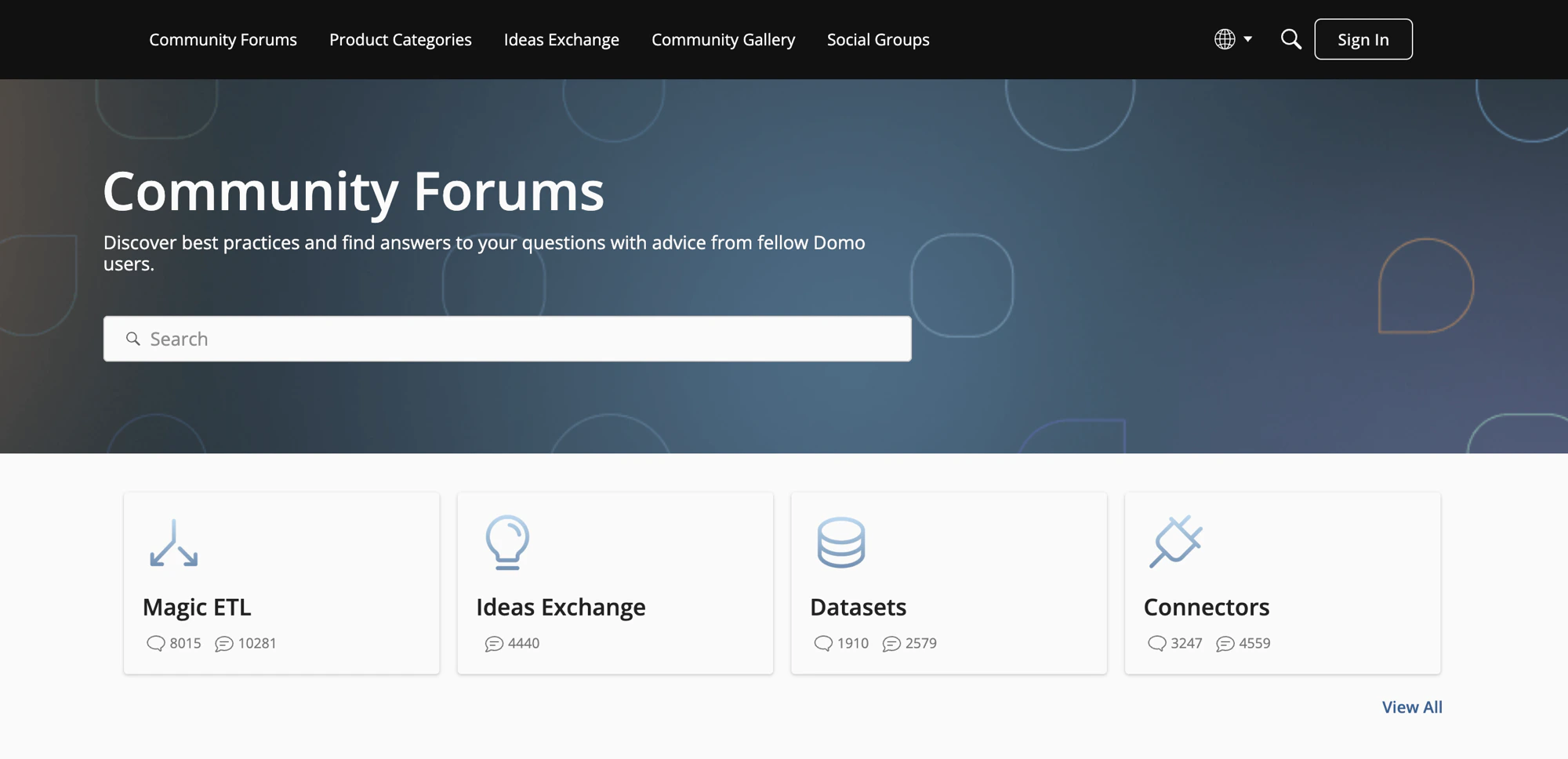
The Community Forums are an excellent resource for questions, with an average response time of 30 minutes. Visit the forums .
.
Education
Domo Education offers self-paced, virtual, and in-person training courses, based on your Support + Education bundle. You can also complete the Domo certification and build your resume. Visit Domo University or learn more about the courses offered.