

Documentation Index
Fetch the complete documentation index at: https://domoinc-arun-raj-connectors-domo-480814-upadate-new-checkbo.mintlify.app/llms.txt
Use this file to discover all available pages before exploring further.
Intro
Buzz comes in two varieties—the version found within the Domo application as well as a free downloadable version that functions as an independent application on your computer. These versions are exactly the same, save for a set of additional toolbar options in the free version. For more information about these options, see Desktop version toolbar options.System Requirements
Windows
- Runs on Windows 7 and later versions. (Older versions will not work.)
- Both x86 and amd64 (x64) binaries are provided. The ARM version of Windows is not supported.
- Intel Pentium 4 processor or later that’s SSE2-capable
- 512 MB of RAM
Mac
- Runs on OS X 10.9 and later versions. (Older versions will not work.)
- Only 64-bit binaries are provided.
- 64-bit Intel processor
- 512 MB of RAM
Linux
- Runs on Ubuntu 12.04+, Fedora 21, and Debian 8
- Intel Pentium 4 processor or later that’s SSE2-capable
Downloading the Desktop Version of Buzz
You can download the desktop version of Buzz from the Domo product. To download the desktop version of Buzz,- Open the Domo product.
-
(Conditional) If Buzz is not open, open it by clicking
 in the toolbar in the upper right corner of Domo.
-
Select Download the Buzz App in the Buzz dropdown menu in the top left corner of Buzz.
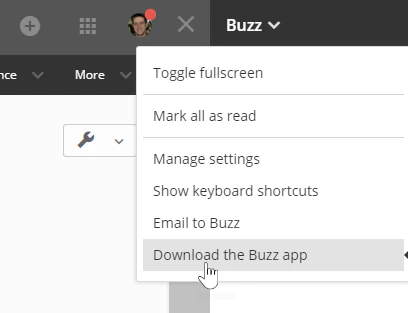
- Choose your desired operating system.
Running the Desktop Version of Buzz
Follow these steps to get going with the desktop version of Buzz. To run the desktop version of Buzz,- (Conditional) If you just installed Buzz, it opens automatically. Otherwise, locate the Buzz file on your machine and double-click it.
-
Enter your company domain in the field. This is the portion of your company’s Domo URL that comes before
. domo.com.For example, if the URL of your company’s Domo instance wasmyURL.domo.com, you would entermyURL. -
Click Continue.
One of two things now happens:
-
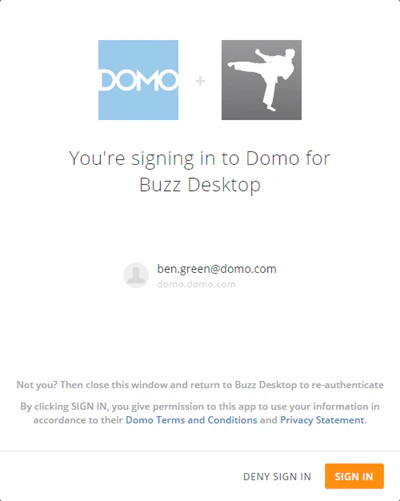
If you are already signed into the Domo instance you specified in step 2, a dialog appears asking if you want to sign in using your current credentials, as shown here:
If this dialog appears, go to step 4.
-
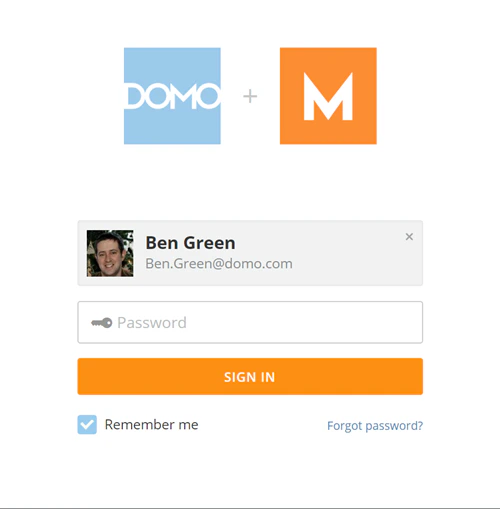
Otherwise, the normal Domo login screen appears for the specified instance.
If this dialog appears, go to step 5.
-
If you are already signed into the Domo instance you specified in step 2, a dialog appears asking if you want to sign in using your current credentials, as shown here:
-
(Conditional) If the sign-in dialog appears as shown in the first image above…
- If you want to sign in using the account shown here, click Sign In.
- Otherwise close the browser window, log out of Domo, reopen Buzz Desktop. enter your desired domain, then enter your credentials.
- (Conditional) If the regular Domo login screen appears as shown in the second image above, enter your credentials, then click Sign In.