

Documentation Index
Fetch the complete documentation index at: https://domoinc-arun-raj-connectors-domo-480814-upadate-new-checkbo.mintlify.app/llms.txt
Use this file to discover all available pages before exploring further.
Intro
This tutorial walks through building a React + TypeScript app that renders a world map with Mapbox GL JS, powered by a Domo dataset. You’ll learn how to:
- Scaffold a Vite + React + TypeScript project with the DA CLI
- Upload a CSV to Domo and wire it to your app through
manifest.jsonmapping - Publish an initial design, create a proxy card, and link it to your local dev server
- Fetch mapped data with
ryuu.jsand render it as a GeoJSON circle layer in Mapbox - Use a custom Mapbox style and scale point radius / color by a numeric field
Prerequisite: Complete the Setup and Installation guide and run
domo login before starting.Step 1: Install the DA CLI and scaffold the app
The DA CLI clones the @domoinc/vite-react-template — a Vite + React + TypeScript project preconfigured with the Domo proxy, ESLint, Prettier, Vitest, Storybook, and
da generate scaffolding.
Install the CLI globally:
da new prompts for a package manager (pick pnpm), clones the template, writes your app name, initializes git, and installs dependencies.
Add the Mapbox runtime, the Domo JS client, and TypeScript types:
Step 2: Get a Mapbox access token
If you don’t already have a Mapbox account, create one for free at account.mapbox.com/auth/signup. Your default public access token is on the account home screen. Copy it — you’ll paste it into the Map component in Step 6. See Mapbox’s guide on access tokens for details on scoping and restricting tokens for production use.
Step 3: Upload a dataset to Domo
We need a dataset for the map to point at. Download World_Cities.csv from the sample repo (~47k rows with
city, country, lat, lng, population).
In your Domo instance: Data → CONNECT DATA → Upload a spreadsheet, drag the CSV in, and save the dataset with defaults.
Once it’s uploaded, open the dataset and copy its dataset ID from the URL (the UUID after /datasources/). You’ll use it in the next step.
Step 4: Declare the dataset mapping
Dataset mappings tell Domo which dataset to supply to your app at runtime. The
alias (geoData here) becomes the URL path your app queries; fields rename columns so your app code doesn’t care what the source column is called.
Replace public/manifest.json with:
YOUR_DATASET_ID with the UUID from Step 3. Note that long is aliased from the source column lng — this is the power of aliases: your app code uses whatever shape is convenient.
Step 5: Publish the initial design and wire the proxy
Before local dev can query mapped data, Domo needs to know the app exists and be told which dataset to hand over to it.
pnpm build and domo publish from the build/ folder. The output prints a link to the new App Design.
Then, in the Domo UI:
- Open the App Design link — or go to More → Asset Library and find your design.
- Click New Card. A new card is what Domo uses to route dataset requests from your local dev server.
- When prompted, select the dataset you uploaded in Step 3.
- Save the card.
id— the design IDproxyId— the card ID your local dev server will proxy through
public/manifest.json:
Step 6: Build the Map component
Create
src/components/Map/Map.module.scss:
src/components/Map/Map.tsx. This does four things: fetch the mapped dataset through ryuu.js, transform rows into display-ready points (radius + color scaled by population), initialize the Mapbox map, and add a GeoJSON circle layer on load.
domo.get('/data/v1/geoData')is theryuu.jshelper that queries whatever dataset the app’sproxyIdis wired to. The path suffix (geoData) matches thealiasyou set inmanifest.json.- Two
useEffects — one fetches data once, the second initializes the map when points arrive. Splitting them means the map isn’t rebuilt every render. - GeoJSON + a circle layer is Mapbox’s idiomatic way to render thousands of points efficiently; the
['get', 'radius']/['get', 'color']expressions read per-feature properties without needing a separate layer per color. maxBoundsclips the map so users can’t pan endlessly into empty ocean or Antarctica.
YOUR_MAPBOX_ACCESS_TOKEN with the token you copied in Step 2.
Step 7: Use a custom Mapbox style (optional)
The code above uses one of Mapbox’s built-in styles (
mapbox://styles/mapbox/light-v11). If you want a fully custom look, export a style as JSON from Mapbox Studio and drop it next to the component as map-style.json, then swap the style option:
src/components/Map/map-style.json) you can use as a starting point.
Step 8: Wire up App.tsx and main.tsx
src/components/App/App.tsx just renders the map:
src/main.tsx already renders <App /> inside <Provider> — no change needed unless you want to strip Redux (not required for this app, but harmless to leave in place for future work).
Your final src/ tree:
Step 9: Test locally
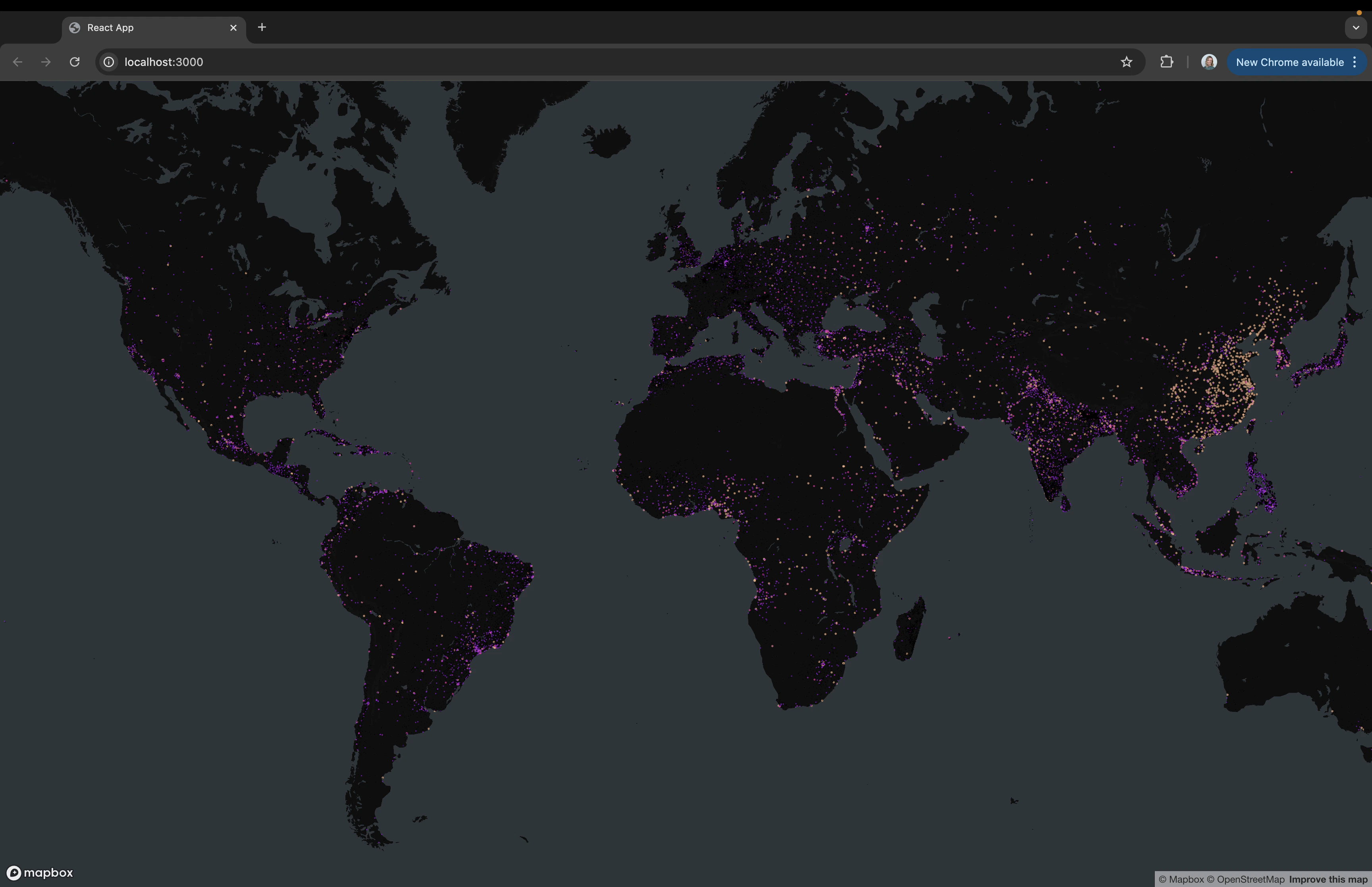
proxyId is set, domo.get('/data/v1/geoData') hits your real mapped dataset. You should see thousands of circles scattered across the world, sized and colored by city population.
Step 10: Publish
When you’re happy, publish the final version:
Next steps
- Add hover popups with
mapboxgl.Popupto show city names and populations on click. - Swap
populationfor any numeric column by changing thedataPointalias inmanifest.json— no code change required. - Layer in a second mapping (e.g. country boundaries) by adding another entry under
mapping[]and querying/data/v1/<alias>. - Continue with AI Book Recommender or Todo App with AppDB.